






The Tenniix App, Explained: Drills, Data, and Custom Control
The Tenniix app is the command center for your machine: it pairs over Bluetooth, stores more than 1,000 training programs, controls every feeding parameter, and delivers firmware updates. You use it to start a session, choose or build a drill, adjust speed and spin mid-rally, and review what happened after the ball stops. This guide maps the app from first launch to advanced use, following the way the official Users Guide and product materials describe it.
Getting Started in the App
The app begins with three steps: download, sign in, pair. Download "TENNIIX" using the QR code on the quick start guide or the official Users Guide page, complete the login or registration flow, and pair your machine over Bluetooth. The pairing search looks for the device named "TNS_Machine_XXX," and the home page shows a solid blue icon when the connection is live and a solid gray one when it is not.
Do the pairing at home the first time, with the machine charged. A first pairing at the court is the classic reason a session starts late: the phone fights with notifications, the machine is low on battery, and the connection drops mid-search. Five minutes at home removes that variable.
If pairing ever fails, the recovery is the same every time: power-cycle the machine, close and reopen the app, and search again. The official guide also documents phone-level connection prompts — Android may ask you to keep a Wi-Fi connection with "no internet," and iOS asks for local-network permission — and both have documented fixes if you accidentally dismiss them.
App versions reorganize menus, so treat this guide as a map of what the app does rather than a screenshot-by-screenshot tour. When a label looks different from what is described here, follow what your app shows; the underlying controls are the ones listed in the official materials.
The Home Screen, Mapped
The home screen is where the machine's status and your session live. The official UI summary lists the key states you will see: battery level, Bluetooth connection, device status, and the current mode. From here you reach the mode selection, the drill library, custom settings, and the update entry.
The status area is the part to learn first. Battery readings appear as ranges — normal operation, below 20 percent, and below 5 percent — so a glance tells you whether the session will last. The Bluetooth icon repeats the pairing logic: blue connected, gray not connected. Device status shows whether the machine is in standby, training, or match mode, and the app surfaces machine alerts such as "No Balls. Please Refill." and ball-jam errors.
Mode selection is the next layer. The core modes are Training Mode and Match Mode, and on vision-equipped machines the app adds smart training options: Track Training, Recovery Training, and Challenge Mode. The official materials describe these as the mode set, and the exact labels on your device come from the current app version.
One habit makes the home screen genuinely useful: check the status block before every session, not just the first one. A battery at 18 percent or a machine that shows a ball-jam alert changes the session plan, and catching either before you drive to the court saves an entire trip.
Browsing 1,000+ Drills
The drill library is the app's biggest asset: the official product positioning describes more than 1,000 training programs, organized by goal and level. Browsing them works like a playlist library — filter, preview the description, select, and feed.
Training Mode ball types give a sense of the range: Baseline Ball, Short Ball, Feed Ball, Volley Shot, Smash Ball, Topspin Ball, Back Spin Ball, Moon Ball, Hand Feed, and Customize. Each one changes what the machine does with the ball, from flat baseline feeds to spin and lob variations. Match Mode adds rally structures — alternating forehand and backhand, attack drills, defense drills, move rallies, and spin rallies — plus three difficulty levels.
For a first browse, start with one goal instead of the whole library. A player working on consistency opens Baseline Ball at moderate speed; a player preparing for matches opens Match Mode and selects a difficulty. The library rewards specific questions, which is exactly how it is organized.
The drill descriptions in the app are the fastest way to understand what a program does before committing to it. If a program's name does not make its intent obvious, the description usually does — and for the most common goals, the skill-level and drill guides on the site walk through the same routines with the reasoning behind them.
Custom Drills: Speed, Spin, and Placement
The Customize option is where the app stops being a catalog and becomes a tool. You set the feed parameters yourself, and the official UI summary names the controls precisely: serve fast or slow, higher or lower trajectory, spin more or less, forehand or backhand placement, and ball interval.
The interval control is a good example of how the app's parameters map to training. The official range is 2–8 seconds between balls, and the app lets you widen or narrow it. A short interval forces recovery and rhythm; a long interval suits footwork and point construction. The same physical machine serves both styles — the difference is the setting.
Placement control works in small increments, with the app adjusting the machine's aim left or right in two-degree steps. Combined with forehand-backhand alternation, this turns a straight feed into a pattern: a ball to the forehand, a ball to the backhand, repeat. That single setting produces the most common drill in tennis without any programming skill.
Spin and height complete the setup. The machine supports spin in both directions plus a no-spin option, and trajectory can be raised or lowered to change how deep the ball lands. The combination that matters is the one your shot needs: topspin practice benefits from incoming topspin at a consistent height, while timing work benefits from flatter, deeper feeds.
Save the combinations you like. A custom drill you build once — say, alternating forehand and backhand with topspin, two-degree movement, and a four-second interval — becomes a repeatable session, which is what turns a ball machine from a novelty into a training habit.
Session Data and Progress Tracking
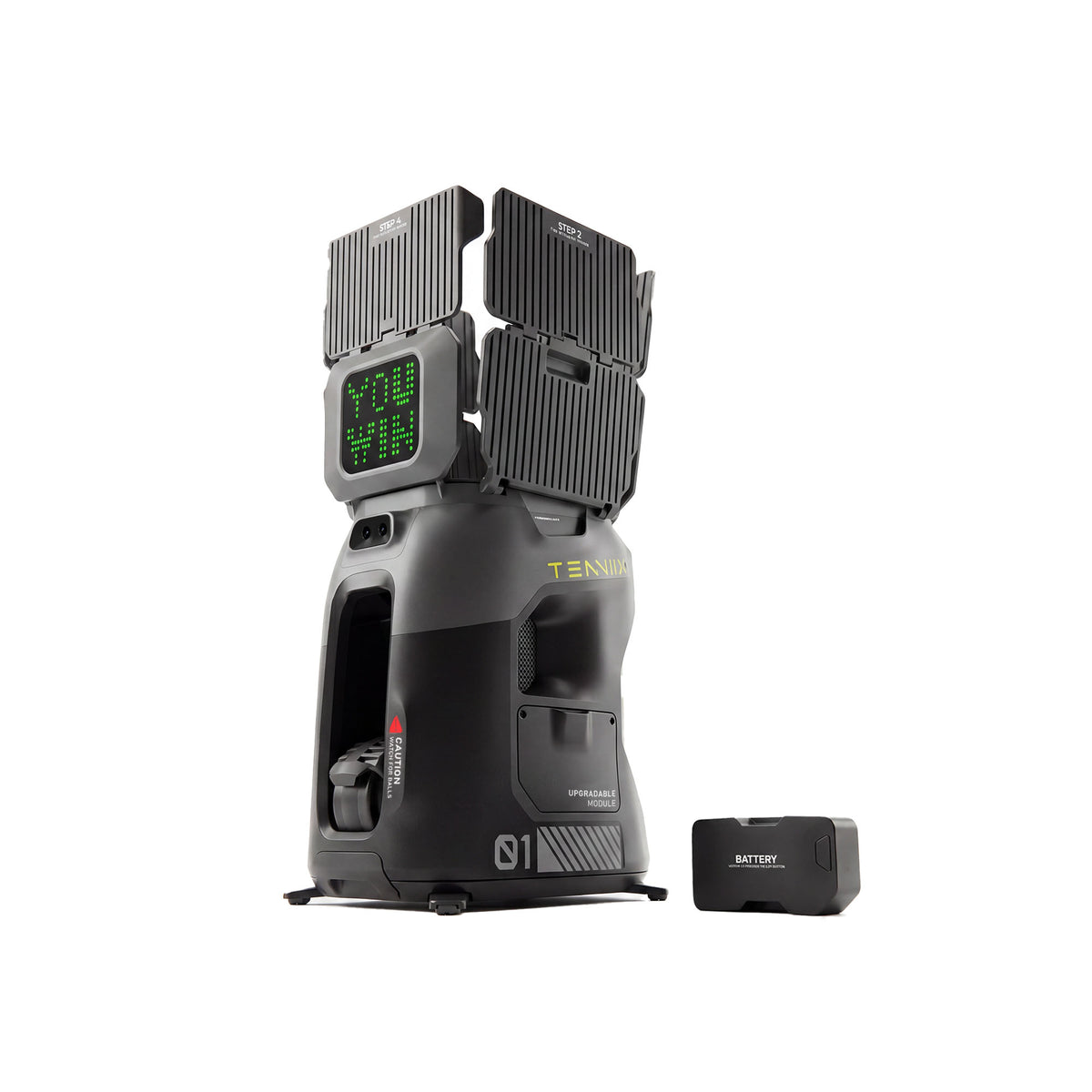
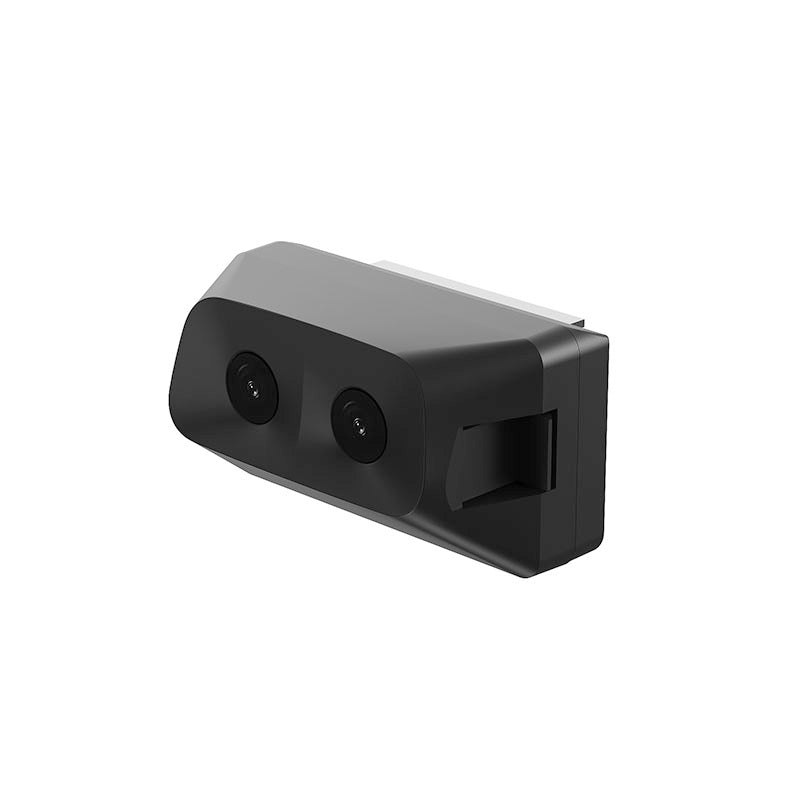
Data is where the Pro's vision system changes the app from a remote control into a coach's log. The AI Vision Module's cameras and positioning let the app report what happened in a session — ball landing locations, spin type, and the patterns you practiced — alongside the feed parameters you set.
The smart training modes make the data visual. Track Training records where balls land relative to your position and lets you focus on topspin, backspin, moon balls, short balls, or placement to the left, right, and center. Recovery Training adds a recovery position to the same idea: the app shows your position, the ball's landing point, and your recovery target, so the drill trains movement as well as contact. Challenge Mode turns the session into a scoring game, with points awarded per shot and feedback like a "like" animation after strong consecutive shots, a win screen at a target score, and an immediate replay prompt.
Basic and Pro owners should set expectations differently. On the Tenniix Basic, the app controls feeding and session setup; the vision-based tracking, landing analysis, and smart modes belong to the Pro with the AI Vision Module. Neither is a lesser experience — they are different tiers of data — but knowing which tier you own stops you from hunting for a feature your hardware does not have.
For progress, keep the session data in context. A single session's landing map tells you what you practiced; comparing sessions over weeks tells you whether the pattern is shifting. The app's real value is the repeatable record: the same drill run three times shows a trend that a casual hitting session never reveals.
Where Updates Live
Firmware and app updates both arrive through the app. When a firmware update is available, the app shows a notification or prompt on the machine's status screen, and the update downloads over your phone's connection and transfers to the machine. The device settings area shows the current firmware version, which is also where you confirm an update took effect.
Updates need two conditions: enough battery and a stable connection. The official guide's troubleshooting section documents the phone-level prompts you may see during connection — on Android, keep the Wi-Fi connection even when the phone says there is no internet; on iOS, allow the app to find devices on your local network. Both prompts exist because the machine's connection looks unusual to a phone, and both have one-line fixes if you tap the wrong option.
Run updates when you are not waiting to hit. A firmware transfer takes a few minutes and should not be interrupted, so the routine is simple: charge, start the update, let it finish, verify the version. The official Users Guide and the Help Center are the reference points when anything in the update flow is unclear.
Common App Questions
Do I need an account to use the app?
Yes. The first launch takes you through login or registration, and that account ties your machine, sessions, and settings together.
Can the app control the machine without the voice armband?
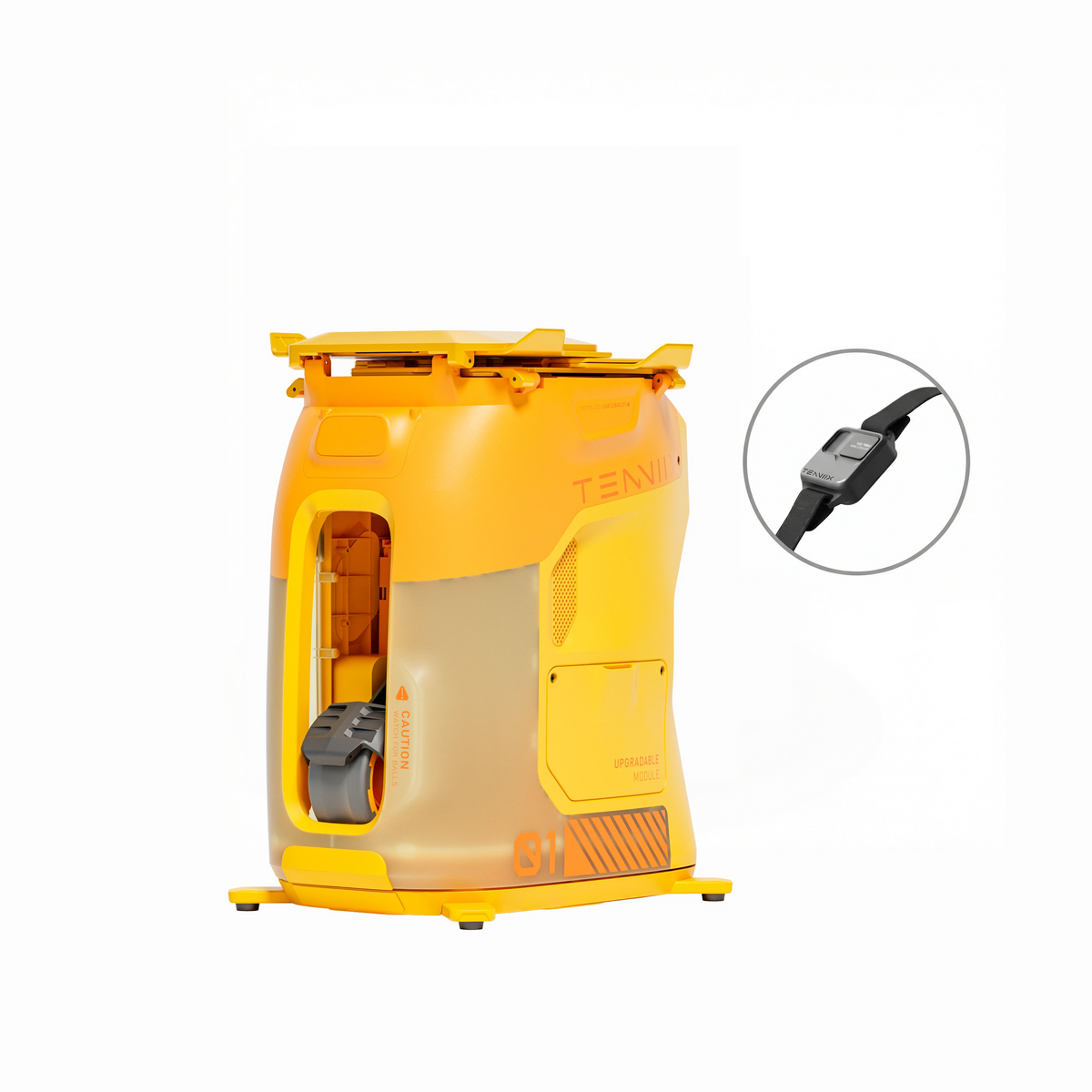
Yes. The app works on its own. The voice armband is an additional hands-free layer that pairs separately and duplicates many of the app's controls by voice.
Which machines support smart tracking and challenge modes?
The vision-based smart modes — Track Training, Recovery Training, and Challenge Mode — require the AI Vision Module, which ships with the Tenniix Pro or can be added to a Basic.
Why does the app say the phone has no internet when I connect the machine?
This is expected during pairing on Android. The machine's connection is a local link, not internet, so keep the connection when prompted. If the prompt is dismissed, forget the network and reconnect.
How do I update the machine's firmware?
Updates appear as a prompt in the app when available. Charge the machine, accept the update, keep the app open, and verify the version afterward in device settings.
Sources
- Tenniix — Users Guide and official documentation: https://tenniix.ai/pages/users-guide
- Tenniix — Tenniix Basic product page: https://tenniix.ai/products/tenniix-basic
- Tenniix — Help Center: https://tenniix.ai/pages/help-center
