






Tenniix Troubleshooting: Fix Common Issues Fast
Most Tenniix problems fall into four buckets — app connection, ball feeding, voice control, and battery — and each has a documented fix you can run yourself before contacting support. The first rule is to work in order: confirm power and charge, check the connection indicators, retry the basic step, then escalate only if it still fails. This guide follows the official Users Guide and Help Center procedures, so every step here is something the brand documents rather than a guess.
Troubleshoot in This Order
Work through issues in the same order every time, because most failures share the same root causes. The official guidance points at three checks before anything specific: is the machine powered on with enough battery, is the connection indicator correct, and has the device been restarted since the problem started.
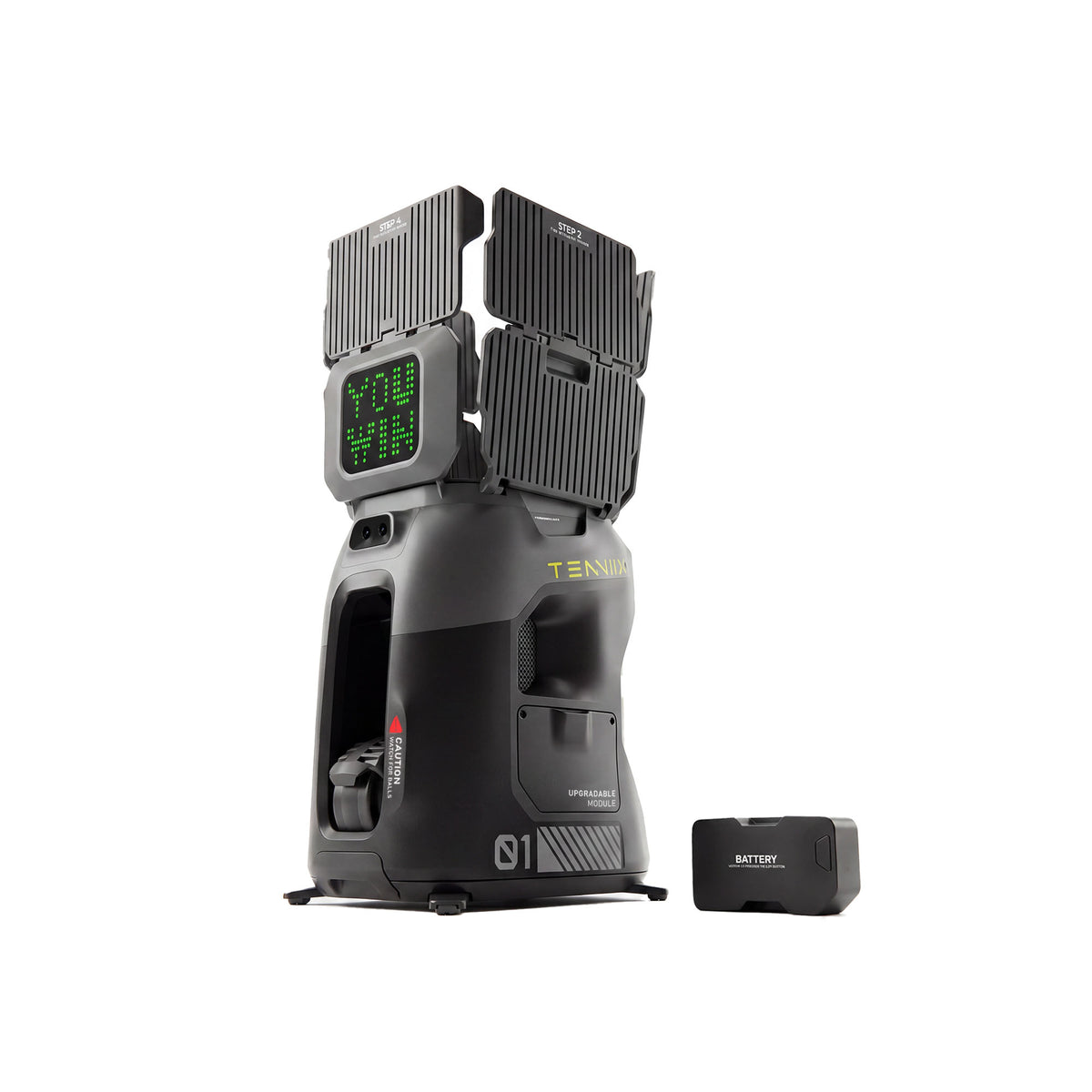
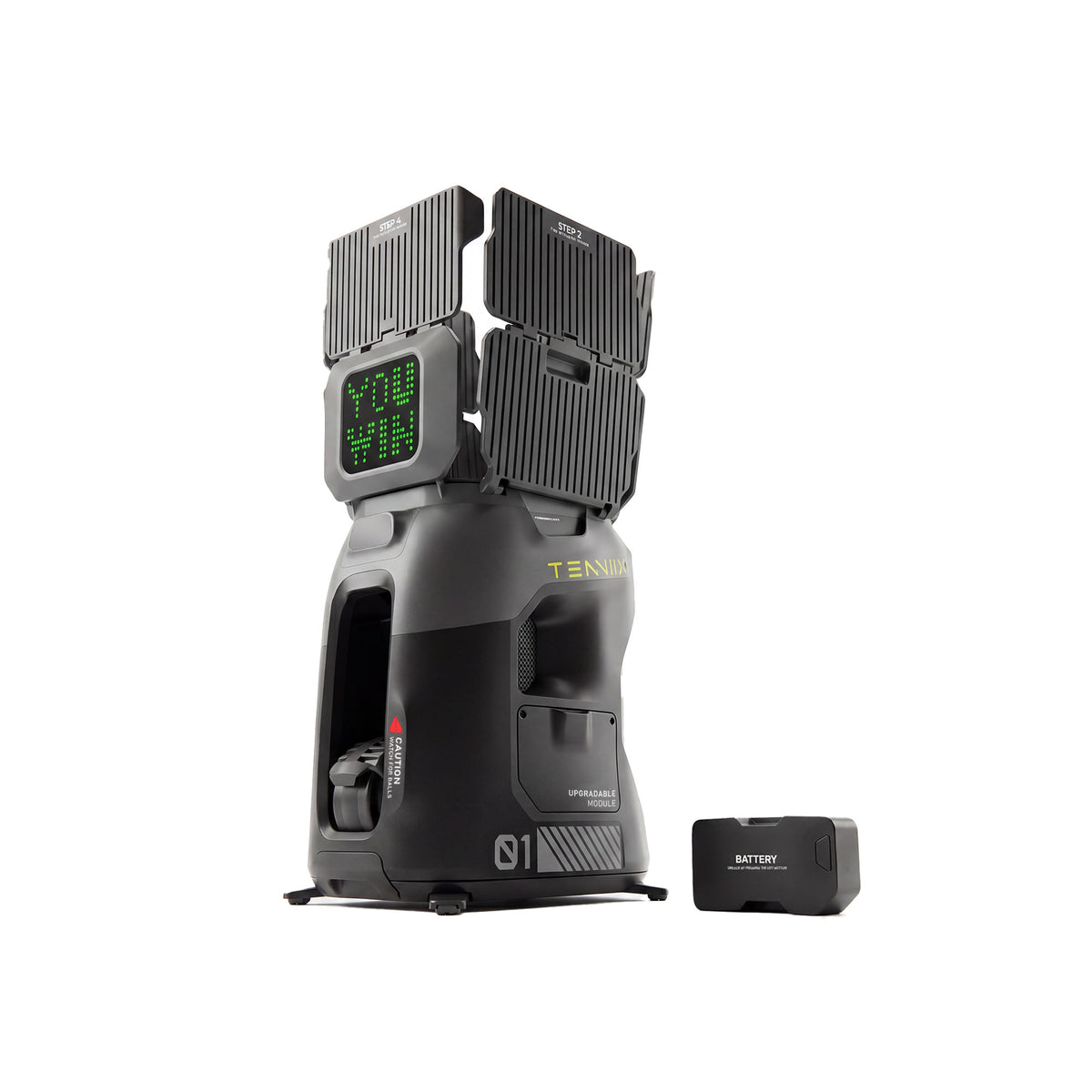
- Check power and battery. A machine with a low battery behaves like a broken machine. The status display shows battery level, and the machine has a low-battery protection state that stops operation rather than draining the battery completely.
- Check the connection indicators. The app shows solid blue when connected to the machine and gray when not. The voice armband shows solid green when paired and red when not. The color tells you which layer to fix.
- Power-cycle and retry. Turn the machine off and on, close and reopen the app, and repeat the step that failed. A restart clears the most common transient states.
- Try the documented fix for your symptom. The sections below cover the four categories in detail.
- Contact support with what you tried. The Help Center and contact page are the official escalation path, and they work fastest when you can report the checks you already ran.
This order matters because the symptoms overlap. An app that will not connect can be a battery problem, a phone-permission problem, or a pairing problem — and the fastest way to find out is to eliminate the cheap causes first. Skipping to a complicated fix is how a ten-minute issue becomes a support ticket.
App Connection Drops
App connection problems usually show up in one of two places: the machine never appears in the pairing search, or the app connects and then drops. Both have documented paths.
If the machine never appears, confirm the Bluetooth indicator is showing the correct state and run the pairing search again from the app's home page. The app searches for the device named "TNS_Machine_XXX"; if nothing appears, power-cycle the machine and retry with the phone within a few meters. Distance and a low battery are the two silent killers of a first pairing.
If the app connects and then drops, the phone's handling of the machine's connection is usually the culprit. The official guide documents two phone-level prompts that appear during connection, and both have precise fixes:
- Android: when you connect to the machine's Wi-Fi, the phone may warn "No Internet connection. Stay connected?" Select "Keep Connected." If the prompt does not appear, tap "Forget network" and reconnect — the machine's link is a local connection, not internet, and the phone needs to be told to keep it anyway.
- iOS: after connecting, return to the Tenniix app. The system prompts "Allow 'TENNIIX' to find devices on local networks" — select "Allow," and the app continues into its update or connection flow. If you tapped "Don't Allow," tap "Forget This Network" and reconnect.
Both fixes are one-time permission corrections, not ongoing maintenance. Once the phone accepts the machine's connection, it behaves like a normal paired device. If drops continue after both prompts are handled correctly, the next step is checking the machine's battery level and moving the phone closer before a full power-cycle retry.
Ball Feeding Issues
Feeding problems fall into three documented states: no balls, a ball jam, or inconsistent landings. The machine's status display names the first two outright — "No Balls. Please Refill." and a ball-jam alert — so the display tells you which one you are dealing with.
For "No Balls. Please Refill," the fix is exactly what the message says: refill the hopper. It sounds trivial, but the alert exists because machines run dry mid-session; topping up is the entire remedy.
For a ball jam, the official manual's procedure is specific and safety-critical: press the emergency stop switch, turn off the power, and wait until the launch wheel has completely stopped before touching anything. Then clear the jam following the manual's instructions. Never reach into the hopper, ball outlet, or near moving parts while the machine is on, and never try to clear a jam while the wheels are still spinning.
Inconsistent landings have a subtler cause. The official guide notes that landing position depends on external factors such as the ball's internal pressure and court conditions, and it recommends new tennis balls for consistent training. If the machine feeds fine but balls land unpredictably, the balls themselves — old, soft, or mixed — are the most likely explanation, not the machine's aim.
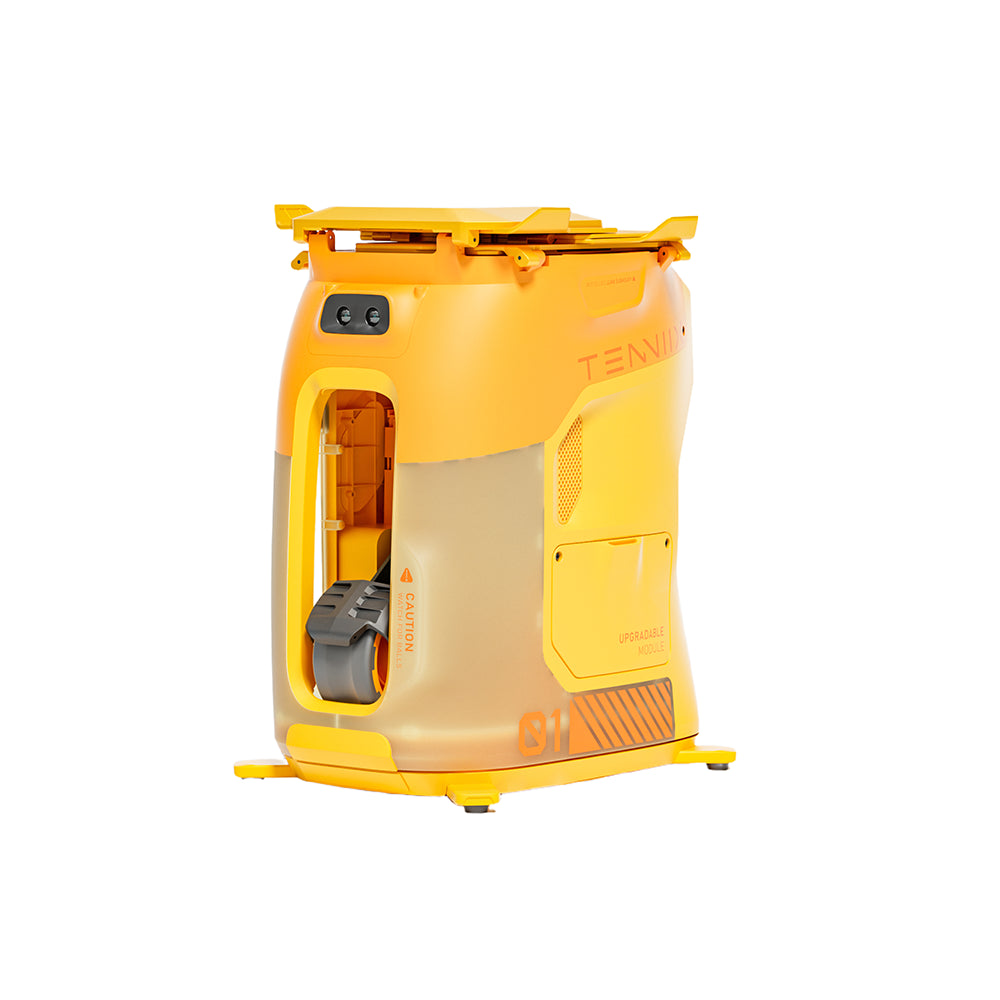
Two maintenance items prevent feeding problems before they start. Keep the launch wheels clean per the manual's maintenance section — the machine's status display includes a "Clean the Fan" alert for a reason — and never use wet balls, which the manual explicitly prohibits. Both are minutes of care that keep the feed path predictable.
Voice Commands Not Responding
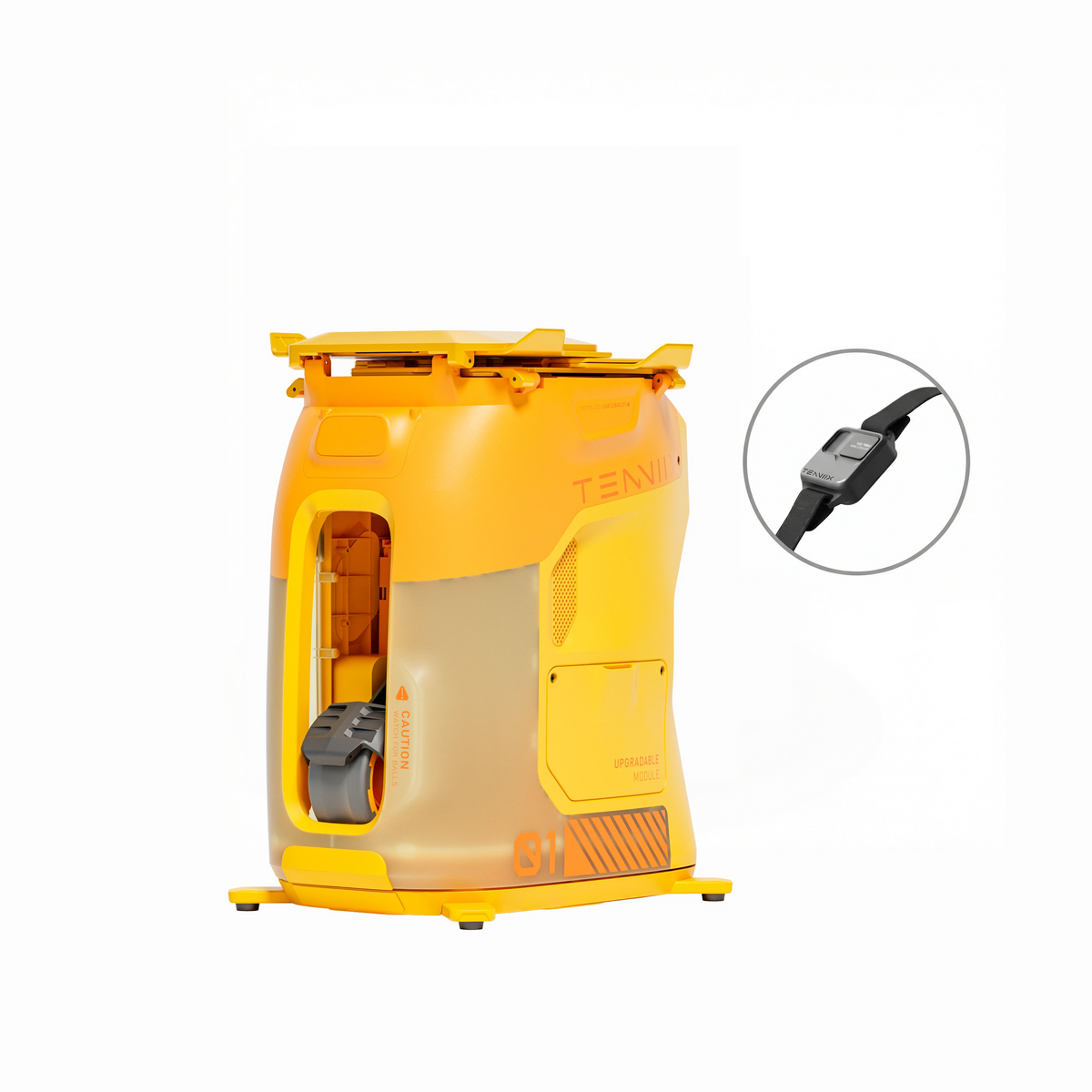
Voice problems start with the armband's indicator light, because it separates connection failures from command failures. A solid green light means the armband is connected and the issue is the command; a solid red or dark light means the connection itself is broken.
For a red light, re-pair: machine on, wristband off, hold the one-press voice control button for at least 10 seconds while staying within three meters. The wristband announces "Entering pair mode" and then "pairing completed" when the link is established. The first-time pairing article walks through this exact procedure, and it is the same recovery every time the armband loses its link.
For a green light with no response, check the wake word first. The wristband listens for "Hi Tenniix" before it accepts commands, and a command spoken without the wake word is simply ignored. If the armband wakes but mishears commands, the machine's placement is the next suspect — the official guide ties command behavior to the placement instructions, so a machine set up outside the recommended positions will feed correctly but to the wrong places.
If the armband is green and waking, but the machine still ignores commands, check the app connection. The machine acts on one control state at a time, and a half-connected app session can leave the machine unresponsive to voice. Close the app or complete the app connection, then retry the voice command. When none of that works, the troubleshooting guide on the official site and the support path below are the next steps — do not attempt to repair the armband yourself.
Battery and Charging Problems
Battery issues show up in the status display before they become emergencies. Normal operation reports 20–100 percent, a battery below 20 percent gets its own warning state, and below 5 percent the machine signals that charging is required. A low-battery protection state stops operation to protect the pack.
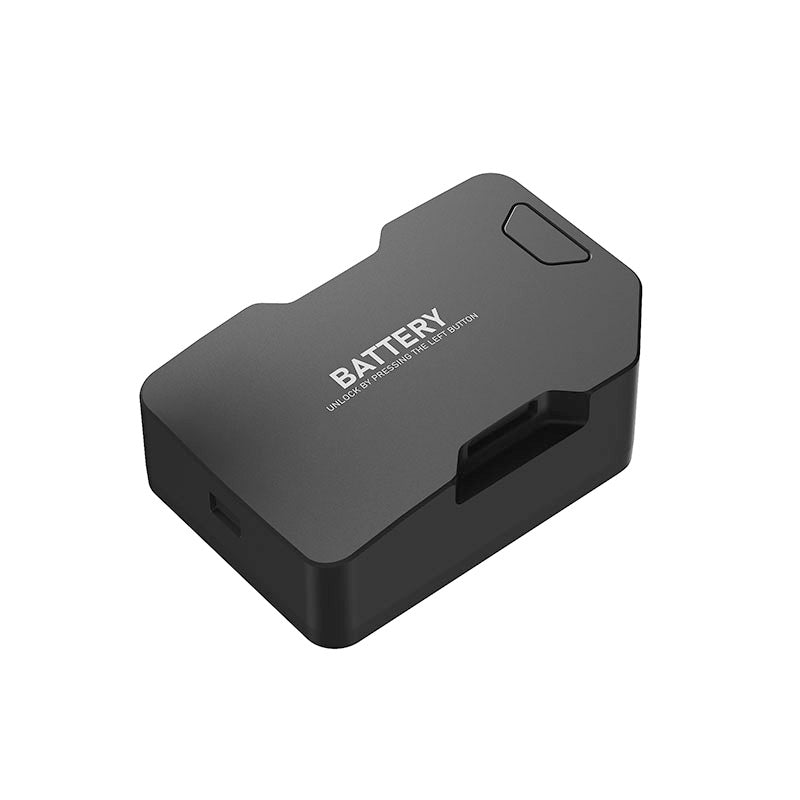
The fix for most battery problems is a full charge with the official adapter and power cable. The battery is removable, so charging can happen outside the machine, and a spare battery is the practical answer for long sessions — swap instead of waiting. If a battery will not charge, check the connection between the pack and the charger first, then try the machine's other power path if one exists.
Storage behavior prevents a different class of problem. The manual recommends keeping the battery at roughly 50 percent charge and disconnecting power if the machine will be unused for more than a month. A battery stored at 50 percent survives long gaps; a battery stored dead often does not.
Two charging rules protect the machine itself. Charge with the supplied equipment rather than random adapters, and do not run sessions that end with the battery fully drained if you can avoid it — the low-battery protection exists because deep discharges are the leading avoidable cause of pack wear.
When to Contact Support
The self-service layer resolves the large majority of issues, and the Help Center is the official hub for everything this guide covers: setup, connection, feeding, voice, battery, shipping, warranty, and refunds. The Users Guide holds the operating documentation, and the Contact page is the escalation path when self-service does not solve the problem.
Before contacting support, assemble the four pieces of context that make a ticket fast: the order number, the machine model and symptom, what you already tried, and a screenshot or short video of the issue. The first message decides how quickly the team can help — a complete description with evidence eliminates the round-trips that stretch support interactions.
Set realistic expectations about response time, because the brand does not publish a guaranteed response window. Include everything in the first message, and the support team can diagnose without asking for the basics. That preparation is the difference between a one-message resolution and a three-day back-and-forth.
The questions to ask yourself before contacting support: is the machine charged, is the connection indicator correct, and have I power-cycled since the problem started? If the answer to all three is yes and the issue persists, you have done the documented troubleshooting — and the support team is the right next step, with the context they need already in hand.
Common Troubleshooting Questions
Why won't my Tenniix app find the machine?
Confirm the machine is on and charged, then run the pairing search from the app's home page with your phone within a few meters. Power-cycle both devices and retry if nothing appears.
What does a solid gray icon in the app mean?
Gray means the app is not connected to the machine. Blue means connected. If you see gray after pairing, reopen the app and reconnect, and check the Android and iOS connection prompts described above.
What should I do if a ball jams in the machine?
Press the emergency stop, turn off the power, and wait for the launch wheel to stop completely before clearing the jam according to the manual. Never reach into the hopper or outlet while the machine is on.
How do I fix a voice armband that stopped responding?
Check the indicator light first. If it is not solid green, re-pair by holding the one-press button for at least 10 seconds within three meters. If it is green, confirm the wake word and the machine's placement.
When should I contact Tenniix support instead of troubleshooting myself?
After the documented checks fail: charged battery, correct connection indicator, and a power-cycle retry. Use the contact page with your order number, symptom, what you tried, and screenshots or video.
Sources
- Tenniix — Help Center: https://tenniix.ai/pages/help-center
- Tenniix — Users Guide and official documentation: https://tenniix.ai/pages/users-guide
- Tenniix — Contact page: https://tenniix.ai/pages/contact