


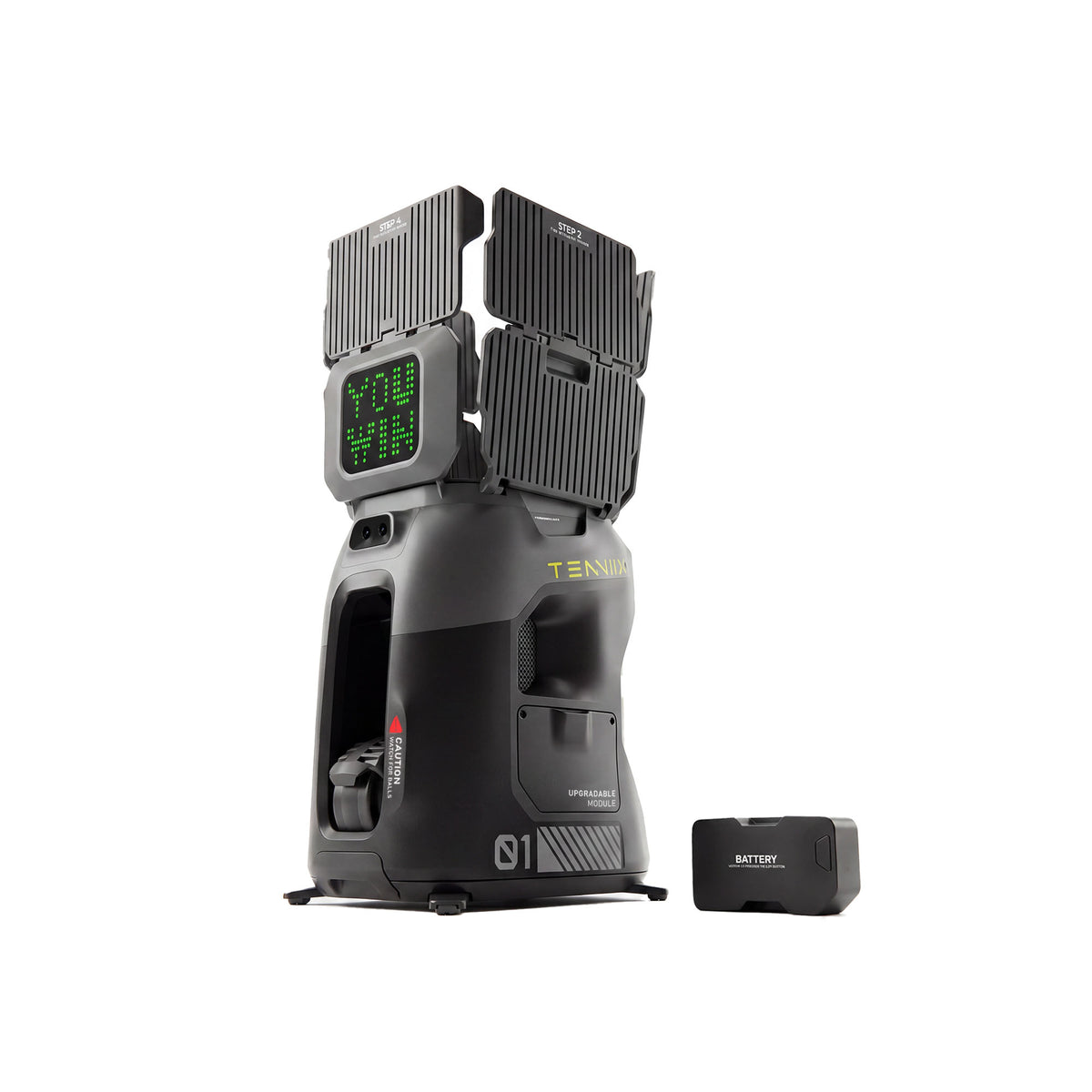
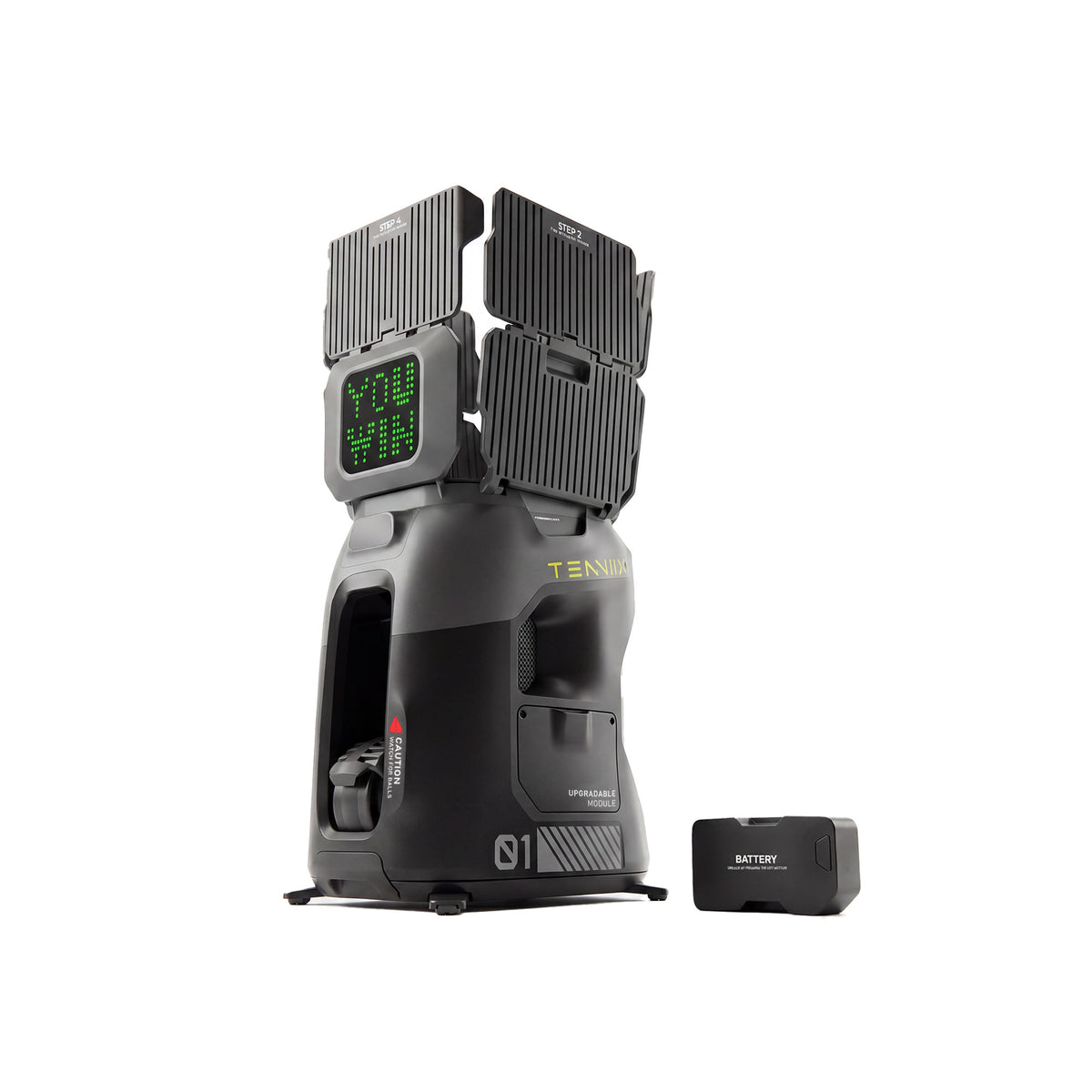

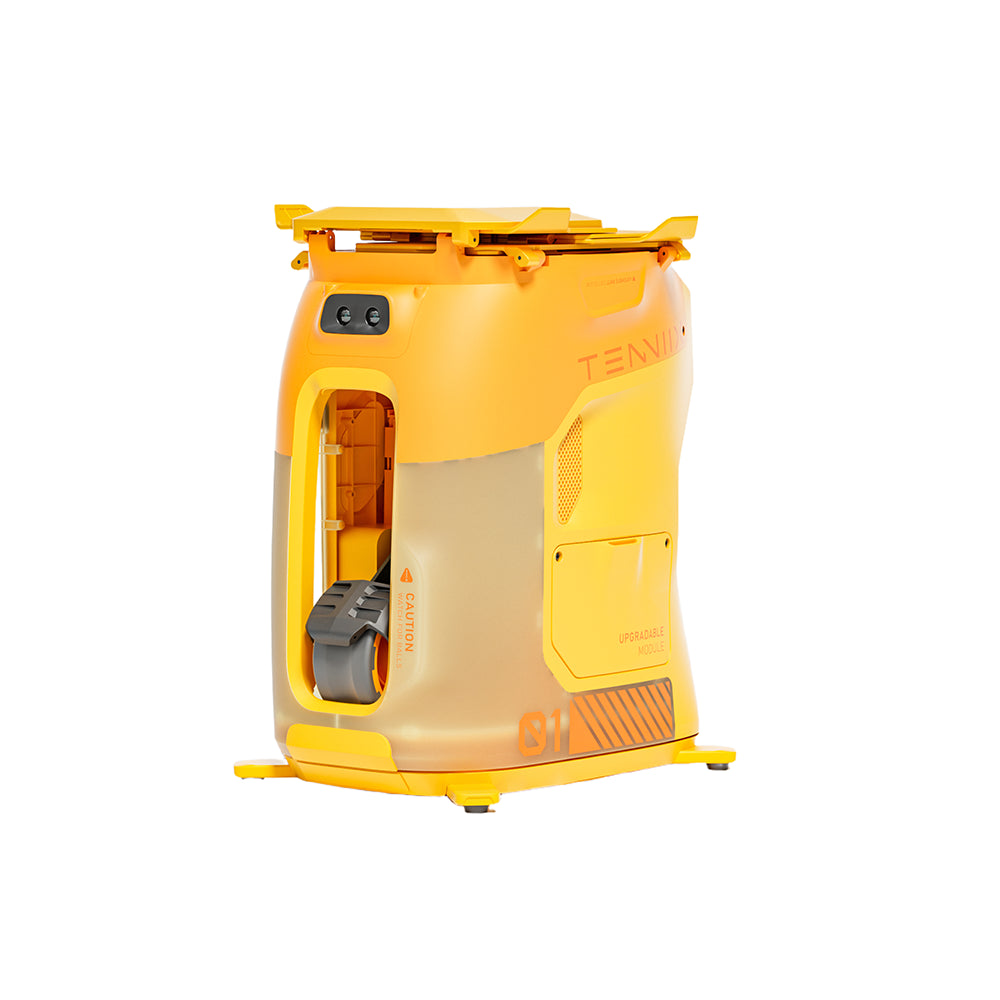
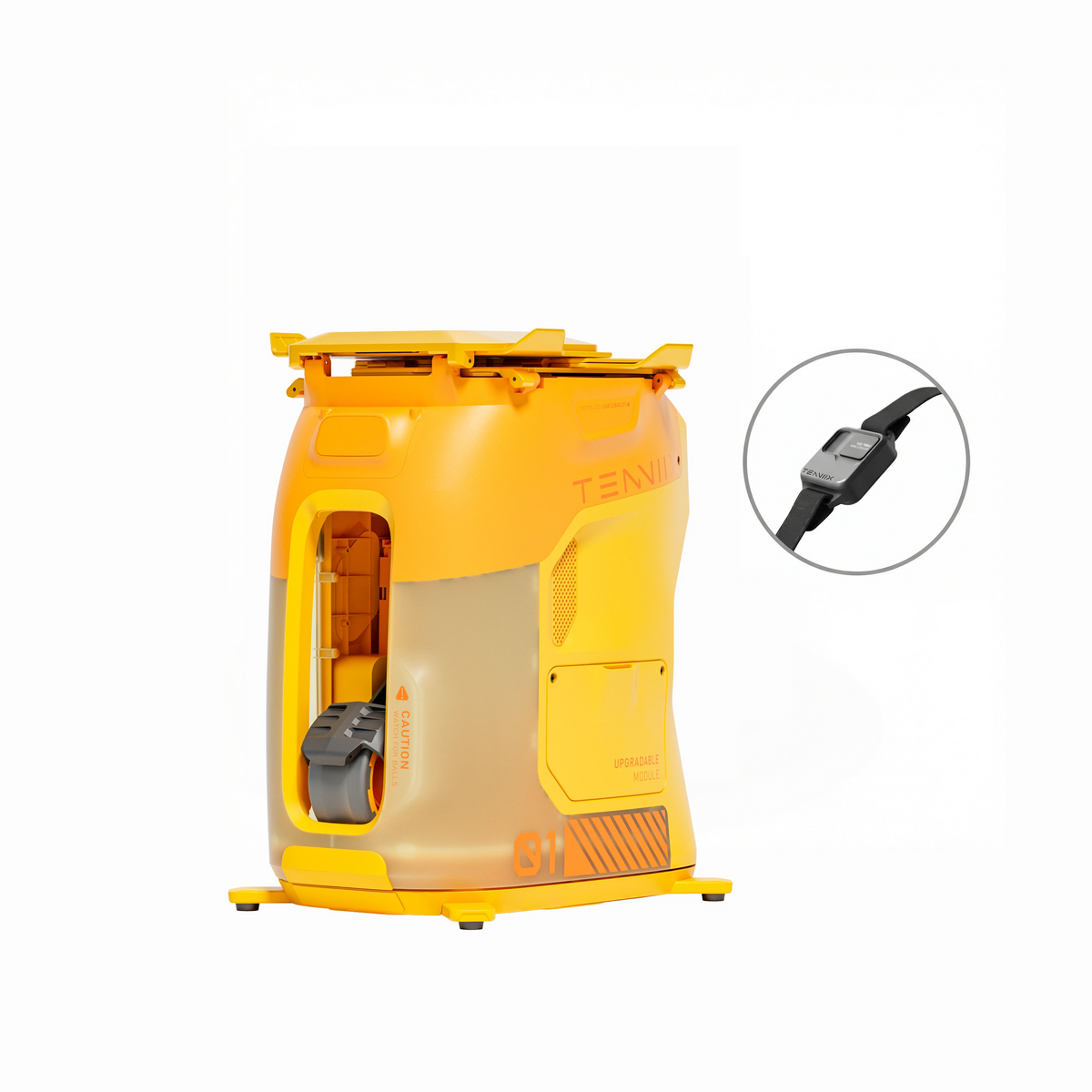



Tenniix Match Simulation: A Step-by-Step Session
Using a Tenniix Pro for match simulation means running a real match structure — points, a score, a playstyle — with the machine as the opponent. The steps are: design the match format, set up Match Mode, play the set with clear rules and targets, use Challenge scoring to add consequences, and close with a short data check. This guide walks through each step as a complete session you can run today.
Designing Your Simulation Match
Before touching the machine, decide what kind of match you want to simulate. The format controls the session length, the pressure, and what the data means afterward.
| Format | Structure | Best for |
|---|---|---|
| Tiebreak to 7 | First to 7 points, win by 2 | Short, high-pressure sessions (25–35 min) |
| Match tiebreak to 10 | First to 10 points, win by 2 | Sustained focus (30–40 min) |
| Short set | First to 4 games, standard scoring | Full match rhythm (40–50 min) |
| Full set | Standard set rules | Long endurance and mental reps |
Choose one format and one playstyle per session. The playstyle — relentless aggression, patient defense, disruptive slices, shifting tempo, changing spin, or constant movement — is the opponent you are training against, and it changes how the machine replies to your shots. A player who struggles with slicers should run the slice-heavy style; a player who gets rushed should face the aggressive style.
Write the plan down before you start: format, playstyle, target, and the score you want to beat. That one line turns a hitting session into a simulation.
The design step is also where you profile your own game. If your recent matches show you lose points to defensive opponents, choose a patient-defense playstyle and practice attacking; if you get pushed around by aggressive hitters, choose the relentless-aggression style and practice absorbing pace. The format controls the container, but the playstyle is the opponent — and the opponent is the part that makes the simulation specific to your weaknesses.
Setting Up Match Mode
Match Mode is selected through the app, where you pick the mode, the playstyle, and the feeding parameters for the rally starts. The exact menu path is documented in the official Users Guide, since app versions organize settings differently — this covers the setup logic.
- Pair and charge. The machine should be connected to the app with a charged battery before you step on court.
- Select Match Mode. Choose the match-style option for your model; on the Pro, this is where the playstyle choices live.
- Pick your opponent. Choose the playstyle you decided in the design step.
- Set rally-start parameters. Choose the feed that starts each point — speed, spin, and placement that resemble a realistic opponent's first ball.
- Confirm in the app. Check the session screen before the first feed so the settings match the plan.
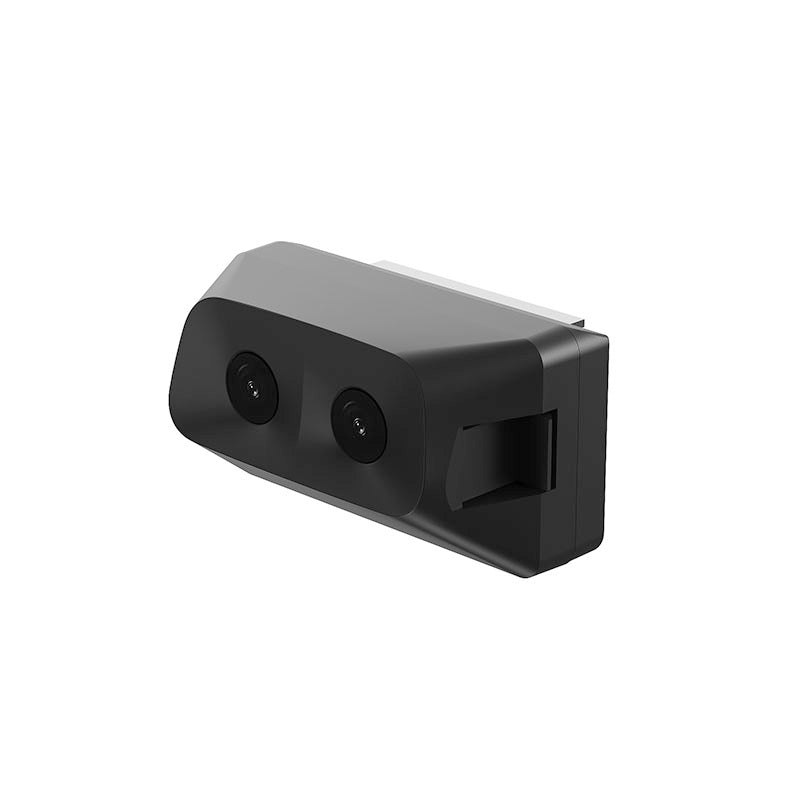
The mode structure on the Pro includes the vision-driven smart modes — Smart Training for movement and Smart Match for adaptive rally play — and the vision article explains what the cameras add — and the official materials describe how they connect to Match Mode in different places. Follow the current app labels on your machine; this guide describes the workflow, not a fixed menu hierarchy.
The rally-start feed deserves as much attention as the mode itself. If the machine starts every point with a medium ball to the same spot, your simulation will feel like a drill with a score; if the feed varies in depth and placement, the points begin like real points and your preparation is tested from the first ball. Start with a feed that is fair but varied, and tighten it as the session demands.
Running the Set: Rules and Targets
The machine feeds the start of each point, and the rally plays out with you as the player. For the simulation to mean anything, define the rules before the first ball.
- Who wins a point: the machine's reply is treated as a real opponent's shot — an out ball from the machine is a point for you, a ball you miss is a point for the machine.
- Your target: give yourself one focus per set, such as "finish short balls" or "recover to center after every shot." The score tracks the match; the target tracks the training.
- Pace: play points at match tempo — walk to the baseline, breathe, and reset between points rather than rushing.
- Changeover discipline: mirror real match pacing, including the rest structure, so the session trains the body as well as the shots.
Two rules keep the set honest. First, do not change the target mid-set; a moving goal makes the data meaningless. Second, if the machine's pace is too fast or too slow, adjust the rally-start parameters between points, not during them — a quick setting change is fine, a constant one is not.
Write the score down as you go if the app is not tracking it in your chosen format. A small scorecard with the point tally, your target, and one note per changeover is enough — it keeps the match real without turning the session into paperwork. The score is not the training; the structure that produces it is.
Challenge Mode: Playing With Consequences
Challenge Mode is the scored layer of Pro match play. The official app materials describe it as AI training with session scores and milestones — in effect, it adds a visible score to the play so every shot carries weight.
To use it, turn on Challenge Mode for the session, play the designed format, and let the scoring track your performance as you go. The practical difference from an unscored set is mental: when a number is on the line, the same shot becomes harder to hit, and that is exactly the training value. The visible record also gives you something to compare next week — the same format against the same playstyle with a higher score is a measurable improvement.
The official materials present Challenge Mode in slightly different groupings across pages — the product FAQ lists four modes, while the app showcase lists Challenge Mode as a feature alongside them. This guide does not resolve that naming question; it describes what the feature does and defers classification to the current app.
Challenge Mode is most valuable when used sparingly. A full scored set every session can turn into pressure for pressure's sake, so alternate: one scored session, one unscored session focused on targets. The scored sessions tell you where you stand; the unscored ones let you work on the mechanics without the scoreboard in your head. Both are part of a match-simulation program.
Post-Match Data Review
The session is not over when the last point finishes — the data check is what turns the simulation into a training plan.
- Open the session summary in the app. The Pro records shot-level information during smart play, so the summary shows how your shots performed across the match.
- Find the weakest category. Look for the pattern that lost you points: short balls, missed recoveries, or direction errors under pressure.
- Compare against your target. Did the one focus you named improve, even if the score did not?
- Write one line for next time. Note the format, playstyle, score, and the category to work on — one line, not a diary.
- Plan the next session. Keep the same format and playstyle once, then change one variable: a different playstyle, a harder format, or a stricter target.
The score tells you whether you won; the data tells you why. Players who only look at the score repeat the same patterns; players who check the categories change them. For the full method behind designing match-pressure training — the why behind the stakes — the site's match simulation training guide covers the methodology in depth; this page stays on the operation.
Keep the post-session check to five minutes. The risk on the other side is over-analysis — a wall of shot data can obscure the one insight that matters. Pick the single category that lost you the most points, name the fix, and close the app. Next session runs the same format and playstyle, and the comparison between two clean one-line notes tells you whether the fix worked.
Common Questions About Tenniix Match Simulation
What formats work best for a solo match simulation?
A tiebreak to seven fits a 30-minute session, a match tiebreak to ten builds longer focus, and a short set gives full match rhythm. Pick by the time you have and the pressure you want.
Do I need the Pro to run Challenge Mode?
Challenge Mode is part of the Pro's AI training features according to the official materials. A Basic can run rally-style play, but the scored, vision-driven layer belongs to the Pro.
How long should a simulation session last?
As a starting point, 30–45 minutes works for most players: a tiebreak or match tiebreak plus the post-session data check. Full sets run longer and suit players with more match-day stamina.
What should I do with the session data?
Check the weakest category, compare it to your named target, and write one line for next time. Keep the format and playstyle constant across sessions so the comparison is meaningful.
What if the machine's pace feels wrong during a set?
Adjust the rally-start parameters between points — speed, spin, or placement — then keep playing. Changing the feed mid-point breaks the simulation, but adjusting it between points keeps the session honest without letting the machine dictate the difficulty.
Sources
- Tenniix — Tenniix Pro product page (Match and Challenge mode descriptions): https://tenniix.ai/products/tenniix-pro
- Tenniix — Official product documentation and Users Guide: https://tenniix.ai/pages/users-guide
- Tenniix — Why vision changes tennis training (official blog): https://tenniix.ai/blogs/news/why-vision-changes-tennis-training-tenniix-pro-s-visual-system-delivers-true-rally-play