


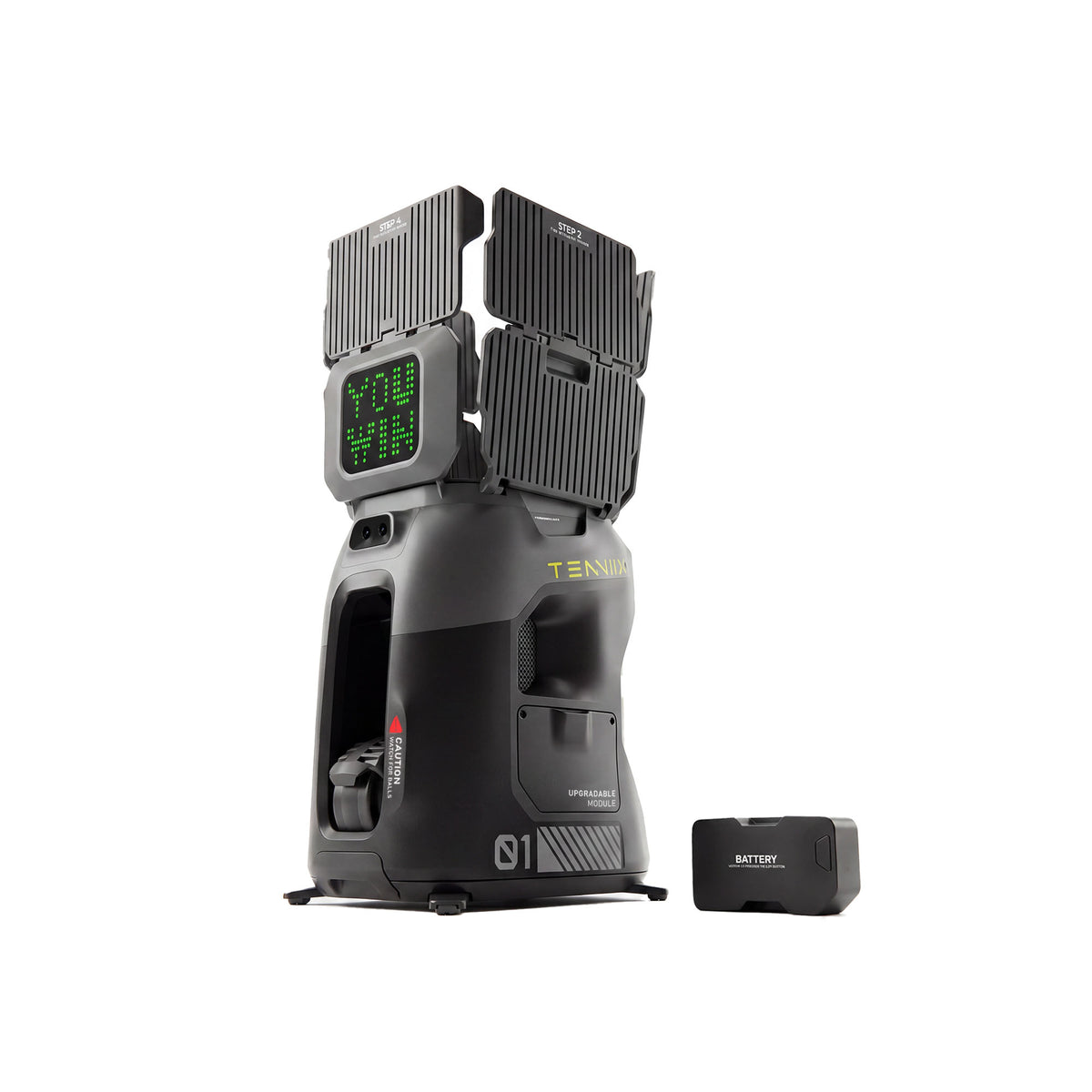
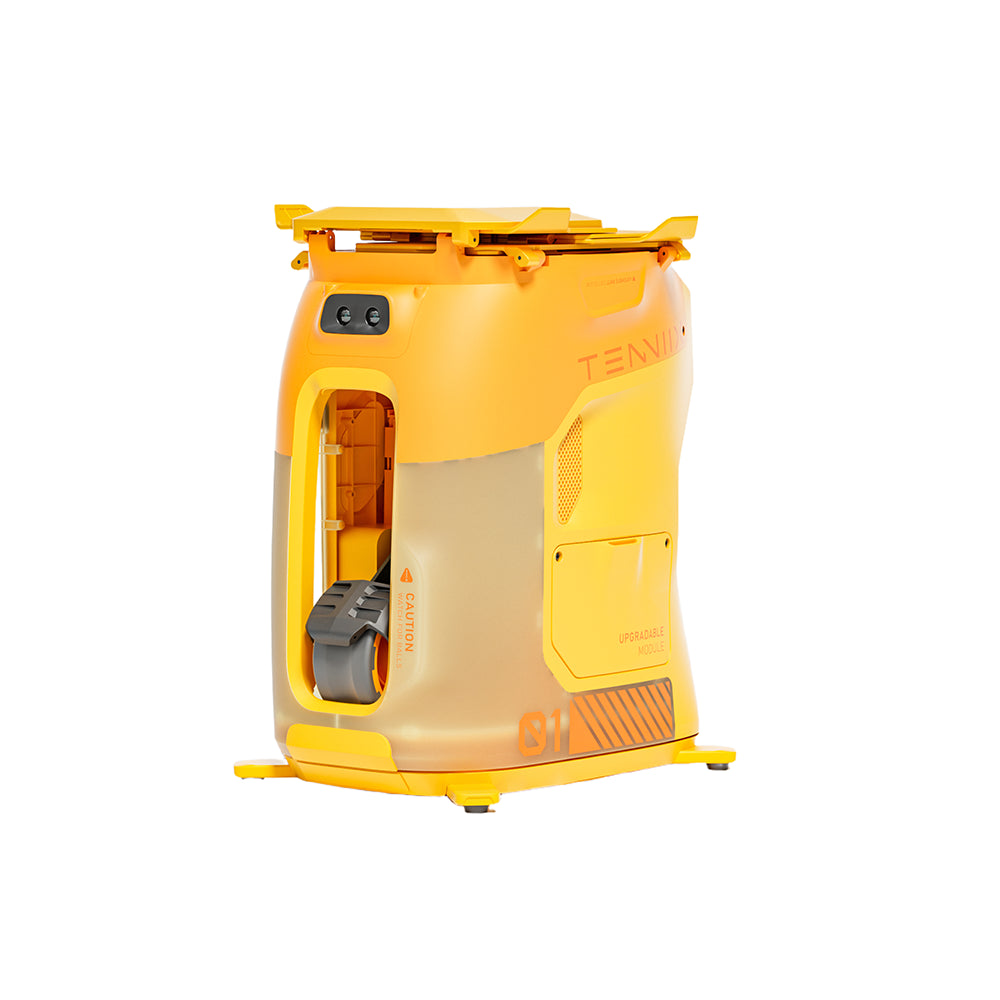


Smart Tennis Ball Machine: The App, Voice, and Data Workflow Explained
""Smart"" on a ball machine usually means three things: an app that controls the feed, voice commands that change settings mid-session, and session data that tracks what you practiced. The training value is real but indirect—none of these features hit a ball for you. What they do is remove friction: you adjust speed, spin, and drills without walking back to the machine, and you can see whether a session actually went as planned. This guide walks through the full workflow—pairing, controlling, saving drills, reading data, and fixing disconnects—so you can judge whether the smart layer is worth the price before you buy.
The Connection Workflow
Every smart machine starts the same way: pairing the app with the machine. The typical flow is:
- Power the machine on and put it in pairing mode, usually via a button or switch on the panel.
- Open the app and select the machine. The app scans for nearby devices over Bluetooth, and sometimes Wi-Fi for cloud features.
- Confirm the pairing code. Many systems show a code on the app and the machine's display so you do not connect to a neighbor's device.
- Check for a firmware update. Updates can improve feeding behavior and fix connection bugs, so running the latest version is worth the few minutes.
Bluetooth covers short-range control during a session; Wi-Fi typically adds account sync, drill libraries, and software updates. A machine that works over both is easier to live with than one that requires a router at the court.
Controlling a Session
Once paired, the app becomes the main control surface. A well-designed session flow covers:
- Live control. Adjust speed, spin, elevation, oscillation, and interval from the phone while you stand at the hitting position.
- Preset shot types. One tap loads a drill with a defined set of parameters, such as a baseline drive or a lob.
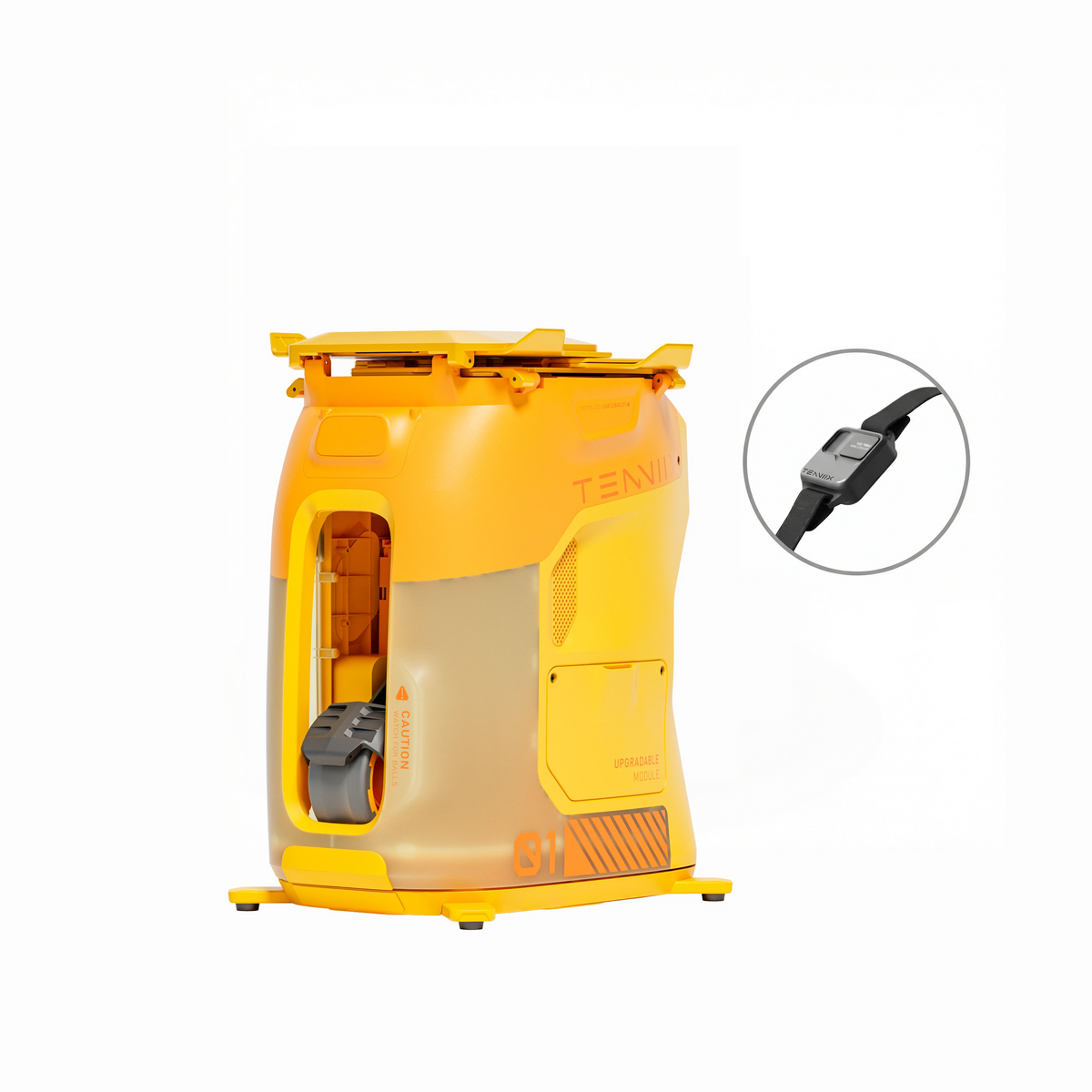
- Voice commands. A voice armband or the app's voice mode lets you change drills without touching the phone. Useful when your hands are on the racket and the phone is in your bag.
- Panel fallback. Physical buttons on the machine remain available, which matters when the phone dies or the connection drops.
The test of a smart machine is whether the app is faster than walking to the panel. If opening the app and navigating takes longer than the walk, the smart layer is not earning its keep for your routine.
Saving and Reusing Drills
The deepest practical value of smart control is a saved drill library. Instead of re-entering parameters every session, you can:
- Save a custom drill with your preferred speed, spin, placement, and interval.
- Name drills by goal—""weak backhand block,"" ""wide forehand recovery""—so you can return to exactly what you were working on.
- Build session sequences that chain several drills, which keeps a practice hour structured without manual changes between blocks.
- Share drills with a coach or friend if the app supports it, so a lesson's drills can be reused at home.
A library you actually use is the difference between a smart machine and a remote-controlled feeder. If you never save a drill, the intelligence is wasted.
A Typical Smart Session, Minute by Minute
A smart machine changes the shape of a session, and it helps to see the whole flow:
- Minute 0: You arrive, pair the app, and load a saved ""warm-up"" drill. Two taps, no dials.
- Minutes 0–8: Warm-up runs at gentle settings. You adjust speed once from the phone between feeds without walking anywhere.
- Minute 8: You say a voice command to switch to the ""backhand block"" drill. The machine changes speed, spin, and interval mid-sequence.
- Minutes 8–20: The backhand block runs. The phone stays in the bag; the data records the block automatically.
- Minute 20: One tap in the app switches to a footwork sweep, then the session ends and the app logs the full hour.
The difference from a panel-only machine is the absence of interruptions: no walks back to the unit, no re-entering parameters from memory, and no guessing what you did last week. If the connection and the saved drills work, the session flows; if they do not, the smart layer becomes the interruption it was supposed to remove.
App Feature Checklist
Not all apps are equal. When evaluating a smart machine, confirm the app actually includes:
| Feature | Why it matters |
|---|---|
| Live control | Adjusts speed, spin, angle, sweep, and interval in real time |
| Preset shots | One tap loads a defined drill |
| Custom drill saving | Your own parameters, named and reusable |
| Session sequences | Multiple drills chained into one session |
| Data history | A record of sessions, drills, and shot counts |
| Sharing | Drills you can send to a coach or friend |
| Offline control | Core functions work without internet |
| Firmware updates | The machine improves after purchase |
| Voice control | Hands-free changes when you need them |
If an app lacks live control or custom saving, the machine is effectively a remote-controlled feeder with a prettier interface.
Data and Progress
Session data is the most oversold and most useful feature at the same time. What apps typically record:
- Session time and shot count, which tells you how much work you actually did.
- Drill history, so you can see what you practiced over weeks rather than guessing.
- Pattern indicators, such as consistency metrics derived from your inputs and session structure.
The honest framing: the machine records your session structure, not your technique. Data showing ""you did 200 forehands this week"" is useful; data claiming ""your forehand improved 12 percent"" should be treated as a calculation from limited inputs, not a coaching verdict. Use the numbers to plan the next session, not to judge your game.
When Things Disconnect
Smart features fail in predictable ways, and most are fixable without support:
| Symptom | Likely cause | Fix |
|---|---|---|
| App cannot find the machine | Pairing mode not active, or Bluetooth off | Put the machine in pairing mode and re-scan |
| Connection drops mid-session | Phone moved out of range, or battery low | Move closer; check both batteries; use panel as fallback |
| Voice command not recognized | Background noise or unclear phrasing | Speak clearly; check the exact command list; use the app |
| Settings not saving | Account not synced, or firmware outdated | Check login, update the app and firmware |
| Machine behaves differently after update | Firmware changed behavior | Read the update notes; recalibrate if needed |
If a machine needs the app for basic operation and the connection is unreliable, that is a bigger problem than a firmware bug. Prefer models where the panel can run a full session on its own.
One more habit keeps smart features dependable: update the app and firmware on a schedule rather than only when something breaks. Manufacturers fix connection bugs and add drills in updates, so a machine that feels limited on day one can behave differently after a year of updates.
Privacy and Account
An app account stores your drills and session history, so the practical questions are: what data is synced, who can access it, and can you delete it? Read the app's privacy policy before buying, check whether session data is stored locally or in the cloud, and confirm that deleting your account removes your history. For a training device, these answers should be clear in the documentation.
Quick Answers
Do I need Wi-Fi, or is Bluetooth enough?
Bluetooth is enough for live control during a session. Wi-Fi typically adds cloud sync, drill libraries, and updates. If you never want the machine on your home network, confirm the core controls work over Bluetooth alone.
Does the app work without an internet connection?
Usually yes for live control, because Bluetooth control is local. Cloud-dependent features like synced libraries and updates need a connection. Check the app's offline behavior before relying on it at remote courts.
How do I update the machine's firmware?
Updates usually appear in the app and install over Wi-Fi or Bluetooth while the machine is powered. Charge the machine first, keep the phone nearby, and follow the app's prompts; a half-completed update is the most common way to create a temporary problem.
Can I share my saved drills with my coach?
On many systems, yes—drills can be exported or shared through the app. Confirm the sharing method in the app before buying if this matters to you, since some apps restrict sharing to the same account family.
What happens to my data if I change phones or accounts?
Most systems store drill libraries and history in the account, so logging in on a new device restores them. Before relying on this, check whether the app supports account backup or only local storage, and confirm you can export or delete your data if you leave the platform.
Conclusion: Test the Workflow, Not the Marketing
Buy a smart machine for the workflow, not the word ""smart."" Open the app, pair the machine, run a session, and save one drill before you decide. If the connection is smooth and the saved drill makes your next session faster to start, the smart layer is earning its price. Compare it against vision-based models in the AI machine guide, use the practice machine plan to build sessions around the data, and return to the hub for the category overview.